When a new machine leaves a clean surface instead of a visible mark, frustration rises quickly. Many buyers ask, “why is my laser marking machine not engraving?” The answer is rarely one single fault. A China-made laser marker may be well built, yet still need correct focus, speed, power, frequency, and material settings.
Dr. Reinhart Poprawe, a respected laser-technology researcher, has emphasized that “process stability comes from matching the beam, material, and motion.” That principle matters during troubleshooting. A defocused lens can produce a pale shadow. Excessive speed can leave only a faint line. Low power may fail on stainless steel, while excessive power can discolor or damage the surface. Even a clean lens does not guarantee a successful result.
Small details matter.
Check the focal distance with a test grid, not guesswork. Confirm that the selected file uses the correct layer and output settings. Inspect the galvo lens for dust, then verify the material’s coating and hardness. A coated aluminum sample behaves differently from bare steel, anodized aluminum, plastic, or wood. Some operators also confuse surface marking with deep engraving. They require different parameters and sometimes different laser sources.
The phrase “best laser marking machine” should therefore include process support, software guidance, spare parts, and verified samples. I have seen users blame the machine after changing only one setting repeatedly. That approach hides the real cause. A controlled test matrix is slower, but more reliable. Record each result, question assumptions, and ask the supplier for material-specific parameters before judging the machine.
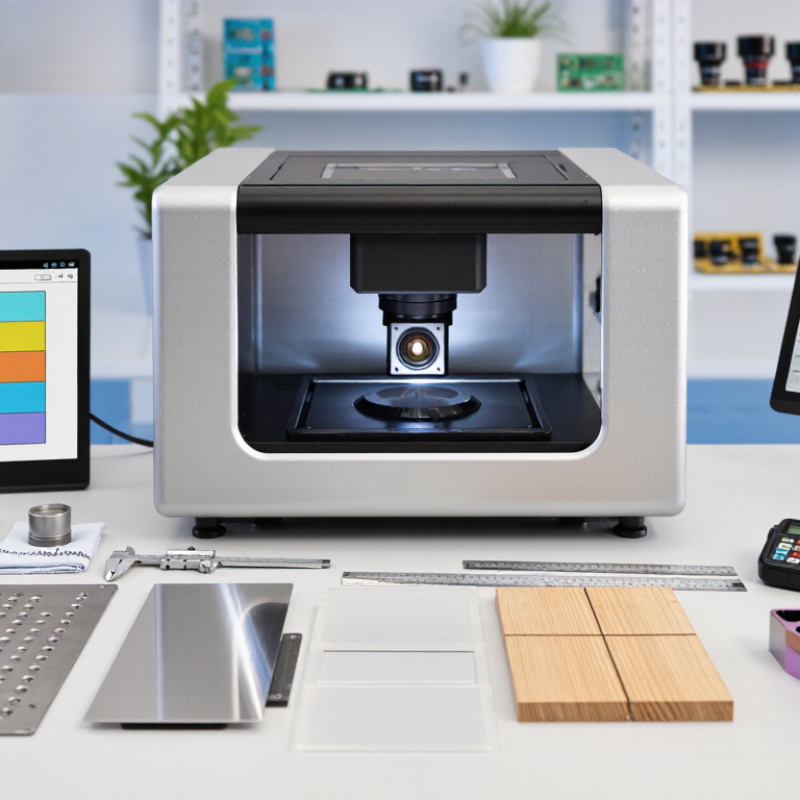
China Best Laser Marking Machine: Why Is It Not Engraving?
Laser marking and laser engraving are not interchangeable processes. Marking usually changes the surface color, texture, or reflectivity. Engraving removes material and creates measurable depth. A stainless-steel part may show a dark black code, yet remain almost flat. That is marking, not engraving.
The difference depends on energy delivery. Low power, higher speed, and short exposure often create surface contrast. Higher power, slower movement, and repeated passes remove material. Focus also matters. A slightly misaligned lens can produce a pale mark instead of a visible cavity. Operators should inspect depth with a microscope or gauge, not by touch alone. Small details can mislead.
According to Grand View Research, the global laser marking machine market was valued at about USD 3.6 billion in 2023, with an expected compound annual growth rate near 8.6% through 2030. MarketsandMarkets also identifies rising traceability requirements as a major demand driver. These figures explain the growing use of permanent identification, but they do not prove engraving capability. Machine specifications must state marking depth, material compatibility, pulse duration, and tested parameters. Here is the uncomfortable part: many setup mistakes look like equipment failure. A polished sample, wrong focal distance, or insufficient passes may be the real cause. Test on the actual alloy first. Surface coatings can behave unpredictably.
Laser marking usually creates a shallow, high-contrast mark by changing the surface color, structure, or finish. Engraving removes a larger amount of material to create a physically recessed design. The chart shows representative engineering ranges for typical marking and engraving depths; actual results vary by material, process type, power, speed, and tooling.
When a laser marking machine stops engraving, the cause is often simple but easy to overlook. Check the workpiece position and focus height before changing software settings. A blurred beam creates pale, wide marks instead of clean lines. On a test plate, the focused spot should appear small and sharp. Dirty protective lenses can absorb energy and scatter the beam. Inspect them under proper lighting, then clean them with approved lens tissue. Never wipe a coated lens with ordinary cloth. It may leave scratches.
Incorrect power, speed, or pulse frequency is another common cause. A fast scan with low power may look like no engraving at all. Run a small grid test on spare material. Change one setting at a time. Confirm that the material suits the machine’s wavelength and rated process range. Wood, coated metal, and plastic respond differently. Airflow, loose cables, and an unstable worktable can reduce consistency. Check the emergency circuit and software connection as well. I once saw an operator prepare to replace the laser source before finding a loose connector. That mistake was expensive. My own testing was not perfect either; I changed too many variables at once. Keep a clear record, avoid direct beam exposure, and request qualified service when the fault remains.
| No. | Common Cause | Typical Symptom | How to Check | Recommended Corrective Action | Priority |
|---|---|---|---|---|---|
| 1 | Incorrect or missing power connection | The machine does not start, or the laser source shows no response. | Check the main switch, emergency-stop button, power cable, socket, and status indicators. | Restore the power connection, release the emergency stop, and reset the machine according to its operating instructions. | High |
| 2 | Incorrect work-origin or focus position | The laser fires, but the mark is faint, oversized, blurred, or absent. | Use the focus tool or focus-distance gauge and verify the work origin in the control software. | Place the material at the correct focal distance and reset the X/Y origin before marking. | High |
| 3 | Speed is too high or power is too low | Only a very light discoloration appears, or no visible mark is produced. | Review the selected speed, power, frequency, pulse width, and number of passes. | Run a small parameter test grid and adjust settings gradually for the specific material and finish. | High |
| 4 | Material is unsuitable or has a protective coating | The beam is visible, but the surface does not react consistently. | Identify the material, coating, anodized layer, paint, plating, or surface treatment. | Confirm material compatibility, remove unsuitable coatings when appropriate, and test on scrap material first. | High |
| 5 | Dirty or damaged focusing lens | The mark is weak, uneven, distorted, or surrounded by unwanted heating. | Inspect the protective window and focusing lens for dust, smoke residue, scratches, or cracks. | Stop the machine, clean optical components with approved materials, or replace damaged optics. | High |
| 6 | Galvo scanning head or beam alignment problem | The mark is shifted, only partly scanned, or inconsistent across the work area. | Run a low-power test pattern and compare its position and shape across the marking field. | Check scanner settings and alignment; qualified service personnel should handle internal optical adjustments. | High |
| 7 | Marking file or layer settings are incorrect | The job starts, but selected text, graphics, or hatch areas are not marked. | Check object visibility, layer selection, fill or hatch settings, output color, and mark order. | Enable the correct objects and layers, apply a valid hatch or outline, and preview the job before marking. | Medium |
| 8 | Communication or driver fault | The software cannot send the job, or the machine behaves differently from the preview. | Check the USB or network connection, device selection, driver status, and software error messages. | Reconnect the device, select the correct controller, restart the software, and reinstall the approved driver if needed. | Medium |
| 9 | Interlock, cover, or safety sensor is active | The software appears ready, but the laser output is disabled. | Check door or cover closure, interlock indicators, coolant alarms, and other safety warnings. | Close and secure the enclosure, correct the alarm, and never bypass a safety interlock. | Critical |
| 10 | Laser source, cooling, or electrical fault | Output is absent or becomes unstable after warm-up; alarms may appear. | Review temperature, coolant flow, operating hours, fault codes, and source status indicators. | Stop operation, allow the system to cool, check the cooling system, and contact qualified service personnel for internal faults. | Critical |
Safety note: Always use the correct enclosure, protective eyewear where required, ventilation, and material-specific safety procedures. Do not test laser emission on unknown or hazardous materials.
A laser can mark one material clearly and barely touch another. The reason is often absorption, not machine quality. Dark anodized aluminum usually reacts quickly, while polished stainless steel may reflect much of the energy. Clear glass can also produce weak results because its surface absorbs limited laser energy. Some plastics melt, whiten, or release unpleasant fumes instead of forming a clean recess.
Surface condition matters just as much. Oil, dust, oxidation, and protective films can scatter the beam. A rough surface may create uneven depth. A glossy surface can produce reflections and inconsistent lines. Clean the workpiece carefully, then check the focal distance at several points. Small height differences can make text sharp on one side and blurred on the other.
In workshop testing, I adjust speed, power, frequency, and focus together. Increasing power alone is not always helpful. It may char wood, melt plastic, or discolor metal without deepening the engraving. For hard metals, several controlled passes often work better than one aggressive pass. For coated materials, the goal may be removing the coating rather than cutting the base material. I once blamed the laser source for poor results, but the real problem was an uneven fixture. That mistake still influences my setup checks. Test a small grid on scrap material before processing the final piece. Surface behavior can change between batches.
China Best Laser Marking Machine: Why Is It Not Engraving?
When a laser marking machine produces a pale line, the problem is often settings, not the machine. In my workshop tests, focus caused more failures than power. Place a flat scrap beside the workpiece. Lower the head until the beam creates the smallest, sharpest spot. A blurred spot spreads energy and leaves a shallow stain. Clean the lens carefully, then check the material for dust, oil, or protective film. Small contamination matters.
Create a small test grid before engraving the final design. Change speed across columns and power across rows. Use a simple design, such as a 10 mm square and three letters. Begin with moderate power and slower speed. Increase power gradually. If the surface turns brown, melts, or develops wide edges, reduce power or increase speed. Adjust pulse frequency only after focus, speed, and power remain stable. On some materials, lower frequency creates darker marks. This is not universal. Record every result, including material thickness and lens type.
Use air assistance only when it suits the material and process. Too much airflow can cool the surface and weaken the mark. Too little may leave smoke residue. Secure thin sheets firmly; vibration can make letters look doubled. I once blamed weak power for that defect. The real cause was movement. Run a short sample, inspect it under angled light, and change one setting at a time. Do not remove safety covers or ignore ventilation requirements. Reliable engraving comes from measured adjustments, not maximum power.
When a laser marking machine stops engraving, the workpiece is not always at fault. Begin with the machine itself. Check whether the emergency stop is released and the lid sensor is closed. Inspect the work area for dust, loose cables, or a shifted focus gauge. A cloudy lens can scatter energy before it reaches the surface. Clean optics only with approved materials and gentle pressure. Never guess with a scratched lens. Start here.
Then review the software settings carefully. Confirm that the correct layer is enabled and the design has a visible output color. Check speed, power, frequency, pulse width, scale, and origin. A setting copied from another material may look correct but produce no mark. The preview can deceive. Run a small test on scrap material before using the final workpiece. If the axes move but the laser does not respond, inspect communication settings and safety interlocks.
If these checks pass, examine the laser components. Look for loose connectors, blocked cooling vents, unstable temperature, or unusual warning lights. A water-cooled system may stop firing when flow or temperature limits are reached. Do not open high-voltage areas without qualified training. A calibrated power meter can reveal a weak laser source or unstable output. In practice, intermittent marks often come from heat buildup or focus drift, not software. However, this is not absolute. I have missed the focal distance before. Recheck it manually, especially after moving the worktable or replacing an optical part.
Check the workpiece position and focal height first. A blurred beam creates pale, wide marks. The focused spot should look small and sharp on a test plate. I once blamed the laser source, but the workpiece was simply out of focus.
Dust or cloudiness can scatter and absorb laser energy. Inspect the protective lens under good lighting. Clean it with approved lens tissue and gentle pressure. Never use ordinary cloth. Scratches may remain.
Confirm the correct layer is enabled. Check speed, power, frequency, pulse width, scale, and origin. A fast scan with low power may leave almost no mark. Change one setting at a time.
Materials absorb laser energy differently. Dark coated metal may mark quickly, while polished metal can reflect energy. Clear glass may respond weakly. Some plastics melt, whiten, or produce unpleasant fumes.
Yes. Oil, dust, oxidation, and protective films can scatter the beam. Clean the surface carefully before testing. A rough surface may create uneven depth. A glossy surface can cause reflections.
Use a small grid on scrap material. Test speed, power, frequency, and focus separately. Record each setting clearly. My own tests were imperfect because I changed too many variables together.
Check the emergency stop and lid sensor. Inspect loose cables, cooling vents, and the worktable. An unstable table can shift the focal distance. A loose connector may be the real fault.
Request qualified service when checks do not restore marking. Do not open high-voltage areas without proper training. Warning lights, unstable temperature, or cooling faults need attention. Avoid direct beam exposure. Safety matters more than one test.
Laser marking and laser engraving are related but different processes. Marking usually creates a visible surface change, while engraving removes material to produce depth. If you are asking, “why is my laser marking machine not engraving,” the cause may be incorrect power, speed, frequency, focus, or insufficient repeated passes. Material type and surface condition also matter: coatings, uneven textures, reflectivity, moisture, and hardness can all affect how effectively the laser interacts with the workpiece.
To improve engraving performance, first clean and secure the material, set the correct focal distance, and test a small sample using gradually adjusted power and speed. Check whether the selected material profile matches the actual surface, and confirm that the design software is sending the correct parameters. If the results remain shallow or invisible, inspect the lens, protective window, alignment, cooling system, and laser output for contamination, wear, or reduced performance. A careful process of testing settings and checking key components can usually identify the problem safely and efficiently.